
Getting started
From install to your first safer sign-in.
Follow these five steps to create a local vault, protect access, save an account, and decide whether your data should stay on one device or move with you.
About 5 minutes
Install from the official store
Open the Download page and continue to Google Play or the App Store. Install and open Password Manager from the official listing.
- Android requires version 8.0 or later.
- iOS requires version 16.6 or later.
- Core vault use does not require an account or sync.
Choose how to lock the app
On first launch, set an app-lock PIN of at least 6 digits, use supported biometrics, or continue without app lock after reviewing the warning.
- App lock controls entry to the app on this device.
- Skipping app lock does not remove local database encryption.
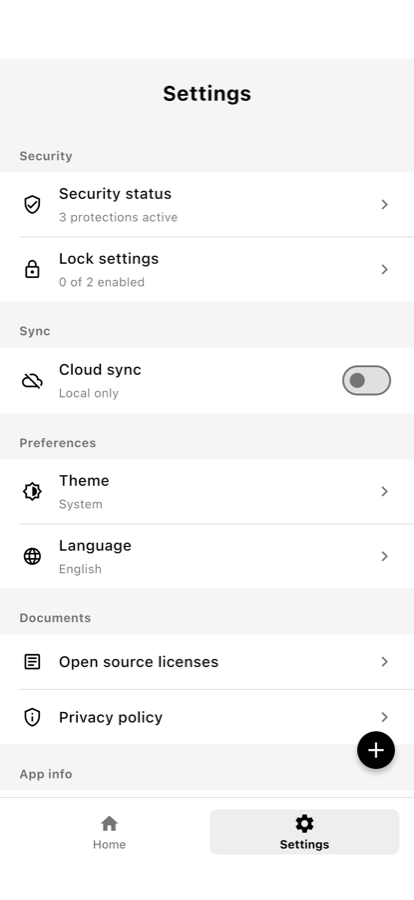
- You can change app-lock options later under Settings → Security.
Save your first account
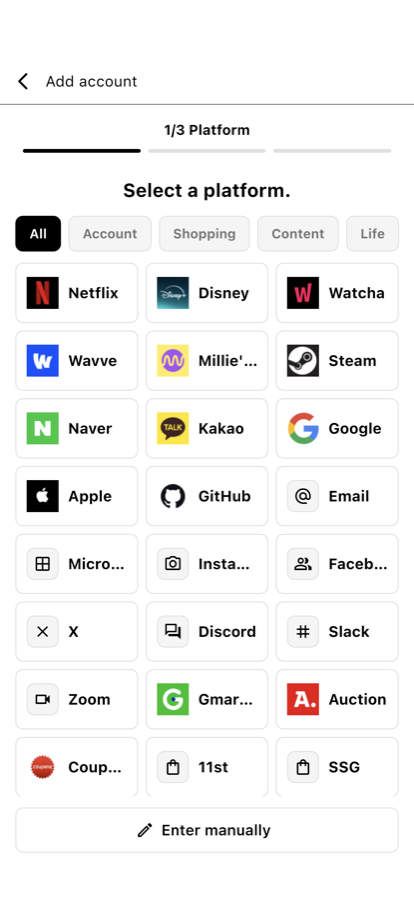
Tap the add button, choose a service or manual entry, then complete the five screens for service, account, security, advanced options, and review.
- A password is required; TOTP is optional.
- Add login URLs or autofill identifiers when needed for matching.
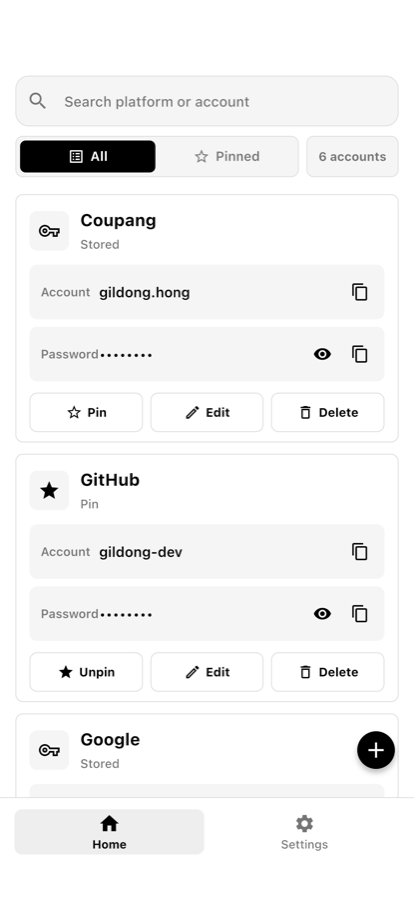
- Review the details before saving. Copied values clear from the clipboard after 60 seconds.
Enable system autofill
Choose Password Manager as an autofill provider in your Android or iOS system settings. The exact settings path can vary by OS version.
- On Android, use the Passwords, passkeys & autofill shortcut in app Settings when available.
- On iOS, enable Password Manager from the system password and autofill settings.
- Availability can vary by app, website, browser, and operating-system behavior.
Choose a continuity plan
Keep the vault local-only, export an encrypted backup, or turn on optional encrypted sync depending on how you want to recover or use it on another device.
- Encrypted backup uses a separate backup password and the system file picker.
- Sync uses Google or Apple sign-in plus a master password.
- Store the relevant password safely before leaving or replacing the device.
Screens you will use
Screens you will use
Do not confuse these two
App lock and master password have different jobs.
App-lock PIN or biometrics
Controls access when opening the app on one device. It is configured during first launch or later in Security settings.
Master password
Protects the sync key and can also gate vault access when enabled. It is never sent to the server and cannot be recovered or reset by us.
If you forget the master password, encrypted sync data may become unrecoverable. A backup password is also not recoverable by us, so keep it separately from the backup file.
Already have saved passwords?
Bring data in with the format that matches your source.
Encrypted backup
Go to Settings → Data & backup → Import encrypted backup. Choose the file and enter its backup password. Existing accounts are kept and duplicates are skipped during review.
CSV import
Use the CSV import option for supported Chrome, Bitwarden, or common CSV exports. CSV files contain plaintext passwords; use only a trusted file and securely delete it after import.
You are ready when
- The app opens with the access control you chose.
- Your first saved account appears in the vault.
- System autofill can find an account on a supported login screen.
- You know whether the vault is local-only, backed up, or synced.
- Any master or backup password is stored somewhere safe.